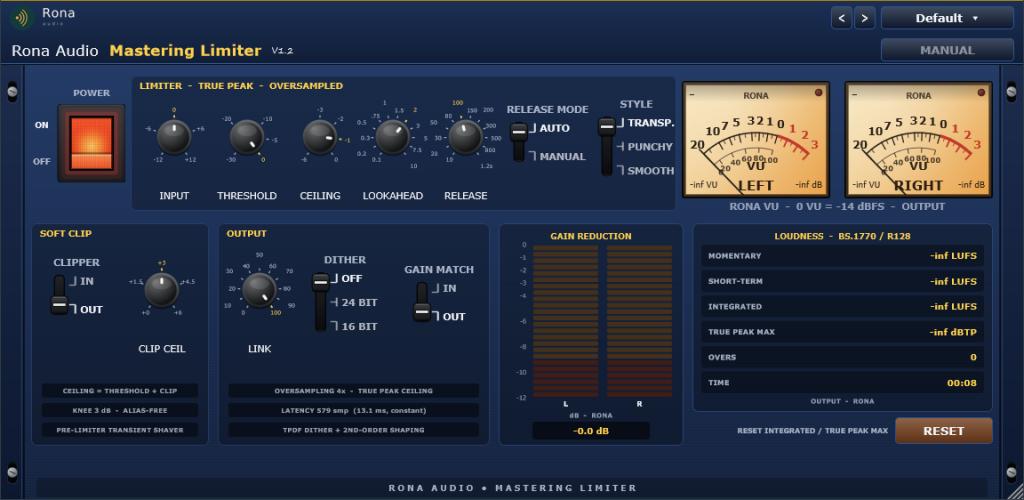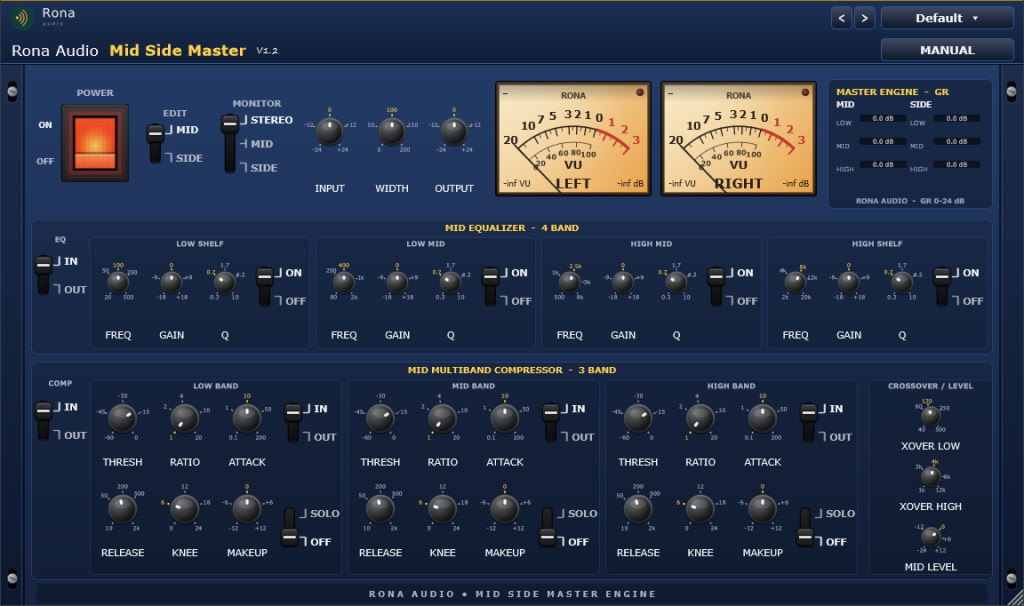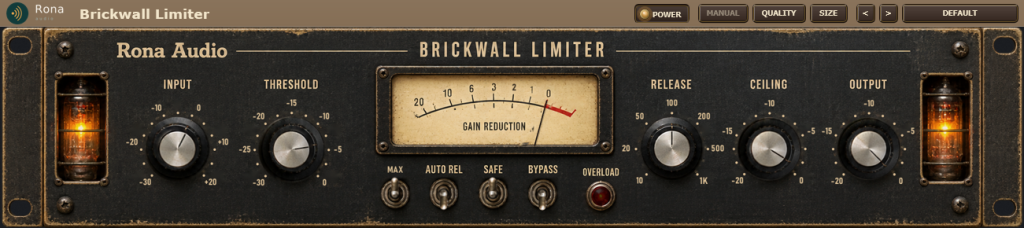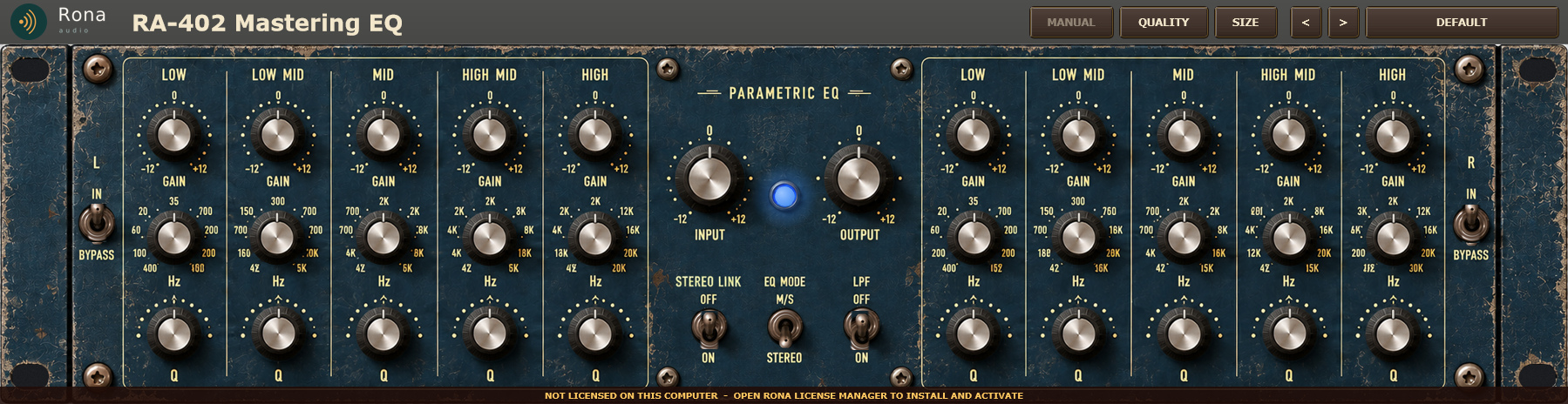
Rona Vintage RA-402 Mastering EQ is an equaliser in the Rona Vintage line from Rona Audio, with the unit’s own front panel as the interface. Every knob and switch you see works; the circuit behind them is modelled stage by stage so the controls interact the way the hardware’s do.
- INPUT — Input trim before the filters, -12 to +12 dB
- OUTPUT — Output trim after the equaliser and MIX, -12 to +12 dB
- EQ MODE — STEREO: the L and R channels are equalised separately. M/S: the signal is encoded to mid and side, the L controls equalise the MID and the R controls the SIDE, then it is decoded back to stereo (click-free crossfade)
- LEFT IN — Left channel (MID in M/S) equaliser in or bypassed – the filters and the five bands; click-free
- RIGHT IN — Right channel (SIDE in M/S) equaliser in or bypassed; click-free
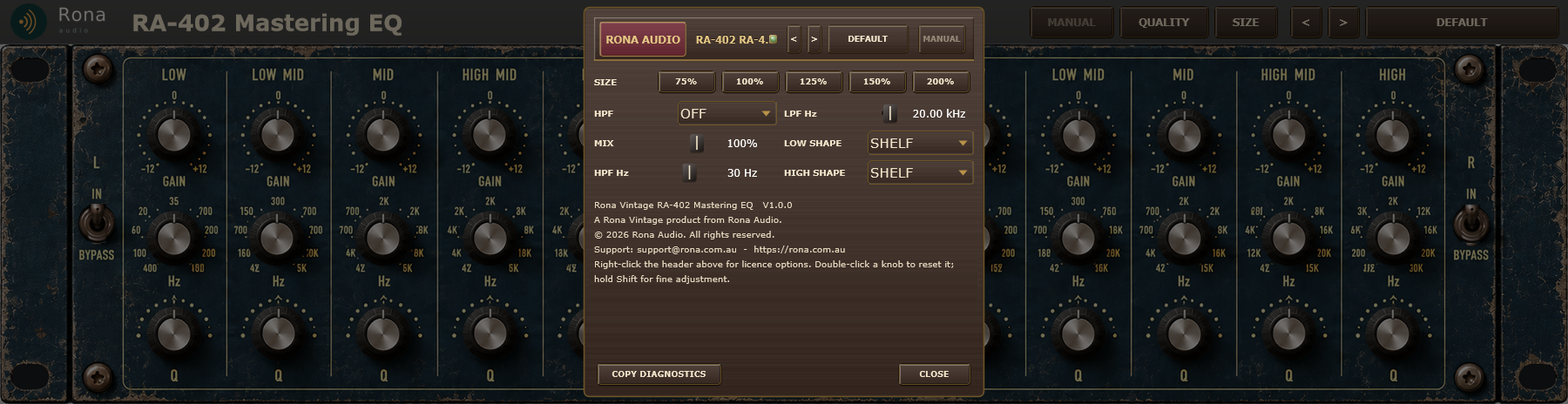
- HPF — High-pass filter in or out (12 dB/oct Butterworth at the HPF Hz setting); click-free
- LPF — Low-pass filter in or out (12 dB/oct Butterworth at the LPF Hz setting); click-free
- L LOW GAIN — Low band: a shelf (default) or a bell, 20 Hz – 500 Hz: boost / cut, -12 to +12 dB (left channel (MID in M/S mode))
- L LOW FREQ — Low band: a shelf (default) or a bell, 20 Hz – 500 Hz: centre / corner frequency (left channel (MID in M/S mode))
- L LOW Q — Low band: a shelf (default) or a bell, 20 Hz – 500 Hz: bandwidth, Q 0.3 (wide) to 10 (narrow); a shelf uses Q up to 1.5 as its slope (left channel (MID in M/S mode))
- L LOW MID GAIN — Low-mid bell, 80 Hz – 2 kHz: boost / cut, -12 to +12 dB (left channel (MID in M/S mode))
- L LOW MID FREQ — Low-mid bell, 80 Hz – 2 kHz: centre / corner frequency (left channel (MID in M/S mode))
- L LOW MID Q — Low-mid bell, 80 Hz – 2 kHz: bandwidth, Q 0.3 (wide) to 10 (narrow); a shelf uses Q up to 1.5 as its slope (left channel (MID in M/S mode))
- L MID GAIN — Mid bell, 200 Hz – 8 kHz: boost / cut, -12 to +12 dB (left channel (MID in M/S mode))
- L MID FREQ — Mid bell, 200 Hz – 8 kHz: centre / corner frequency (left channel (MID in M/S mode))
- L MID Q — Mid bell, 200 Hz – 8 kHz: bandwidth, Q 0.3 (wide) to 10 (narrow); a shelf uses Q up to 1.5 as its slope (left channel (MID in M/S mode))
- L HIGH MID GAIN — High-mid bell, 800 Hz – 12 kHz: boost / cut, -12 to +12 dB (left channel (MID in M/S mode))
- L HIGH MID FREQ — High-mid bell, 800 Hz – 12 kHz: centre / corner frequency (left channel (MID in M/S mode))
- L HIGH MID Q — High-mid bell, 800 Hz – 12 kHz: bandwidth, Q 0.3 (wide) to 10 (narrow); a shelf uses Q up to 1.5 as its slope (left channel (MID in M/S mode))
- L HIGH GAIN — High band: a shelf (default) or a bell, 2 kHz – 20 kHz: boost / cut, -12 to +12 dB (left channel (MID in M/S mode))
- L HIGH FREQ — High band: a shelf (default) or a bell, 2 kHz – 20 kHz: centre / corner frequency (left channel (MID in M/S mode))
- L HIGH Q — High band: a shelf (default) or a bell, 2 kHz – 20 kHz: bandwidth, Q 0.3 (wide) to 10 (narrow); a shelf uses Q up to 1.5 as its slope (left channel (MID in M/S mode))
- R LOW GAIN — Low band: a shelf (default) or a bell, 20 Hz – 500 Hz: boost / cut, -12 to +12 dB (right channel (SIDE in M/S mode))
- R LOW FREQ — Low band: a shelf (default) or a bell, 20 Hz – 500 Hz: centre / corner frequency (right channel (SIDE in M/S mode))
11 factory presets in 4 categories. Formats: VST3 and AAX (Windows 10/11 64-bit); VST3, AU and AAX (macOS). Stereo output. Installed, activated and updated with RONA License Manager.