Rona Vintage RA-302 Mastering Compressor

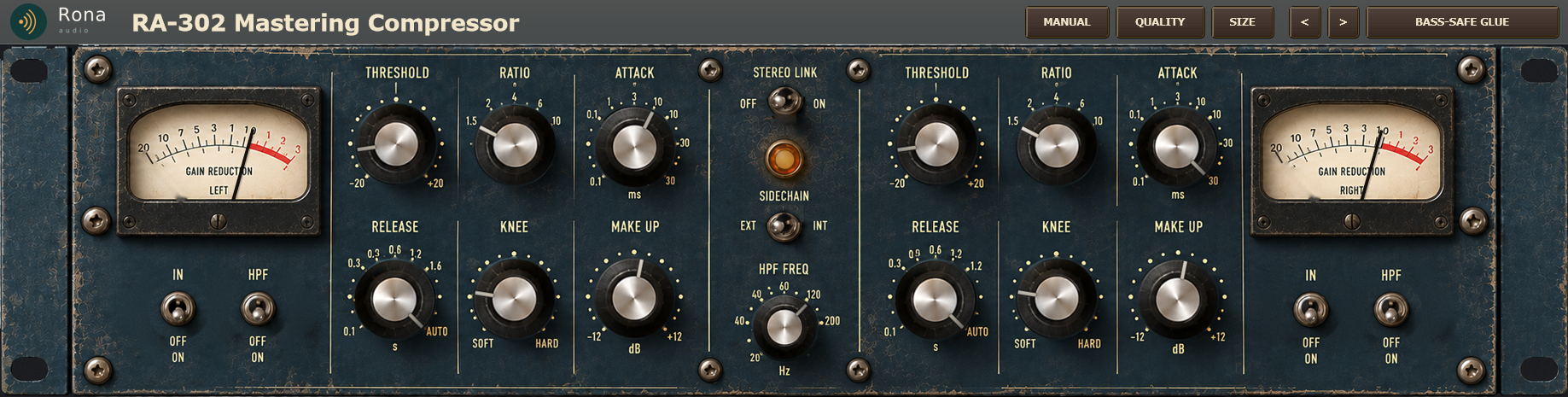
Rona Vintage RA-302 Mastering Compressor is a stereo mastering compressor in the Rona Vintage line from Rona Audio, with the unit’s own front panel as the interface. Every knob and switch you see works; the circuit behind them is modelled stage by stage so the controls interact the way the hardware’s do. VST3, AAX, AU for Windows and macOS — installed and activated with RONA License Manager.

US$235.00

Price in US dollars, inc. GST for Australian customers.

Hear it

Rona Vintage RA-302 Mastering Compressor is a stereo mastering compressor in the Rona Vintage line from Rona Audio, with the unit’s own front panel as the interface. Every knob and switch you see works; the circuit behind them is modelled stage by stage so the controls interact the way the hardware’s do.

  • LEFT THRESHOLD — left channel: the level above which gain reduction starts, -20 to +20 dB (RMS of the sidechain signal)
  • LEFT RATIO — left channel: compression ratio 1.5:1 to 10:1
  • LEFT ATTACK — left channel: how fast gain reduction builds, 0.1 to 30 ms
  • L RELEASE — left channel: how fast the gain recovers, 0.1 to 1.6 s; the last part of the travel is AUTO (programme-dependent: 80 ms for brief, light reduction up to 1.2 s for deep, sustained reduction)
  • LEFT KNEE — left channel: SOFT (0 %, the ratio blends in over 24 dB round the threshold) to HARD (100 %, a sharp corner)
  • LEFT MAKE UP — left channel: gain after the compressor, -12 to +12 dB
  • LEFT IN — left channel compressor in or out of circuit (click-free crossfade); OFF passes the channel untouched
  • LEFT HPF — left channel: a 12 dB/oct high-pass at HPF FREQ in the sidechain (the detector only), so bass does not pump the compressor
  • RIGHT THRESHOLD — right channel: the level above which gain reduction starts, -20 to +20 dB (RMS of the sidechain signal)
  • RIGHT RATIO — right channel: compression ratio 1.5:1 to 10:1
  • RIGHT ATTACK — right channel: how fast gain reduction builds, 0.1 to 30 ms
  • R RELEASE — right channel: how fast the gain recovers, 0.1 to 1.6 s; the last part of the travel is AUTO (programme-dependent: 80 ms for brief, light reduction up to 1.2 s for deep, sustained reduction)
  • RIGHT KNEE — right channel: SOFT (0 %, the ratio blends in over 24 dB round the threshold) to HARD (100 %, a sharp corner)
  • RIGHT MAKE UP — right channel: gain after the compressor, -12 to +12 dB
  • RIGHT IN — right channel compressor in or out of circuit (click-free crossfade); OFF passes the channel untouched
  • RIGHT HPF — right channel: a 12 dB/oct high-pass at HPF FREQ in the sidechain (the detector only), so bass does not pump the compressor
  • STEREO LINK — ON: one gain reduction for both channels – the larger of the two channels’ reductions – so the stereo image never shifts; OFF: each channel compresses on its own (dual mono).
  • SIDECHAIN — INT: the detector listens to the channel’s own input. EXT: it listens to the host’s sidechain input bus (left to left, right to right); if the host has no sidechain connected the detector falls back to the input.
  • HPF FREQ — corner of the sidechain high-pass filters (both channels), 20 to 200 Hz; each channel’s HPF switch puts it in
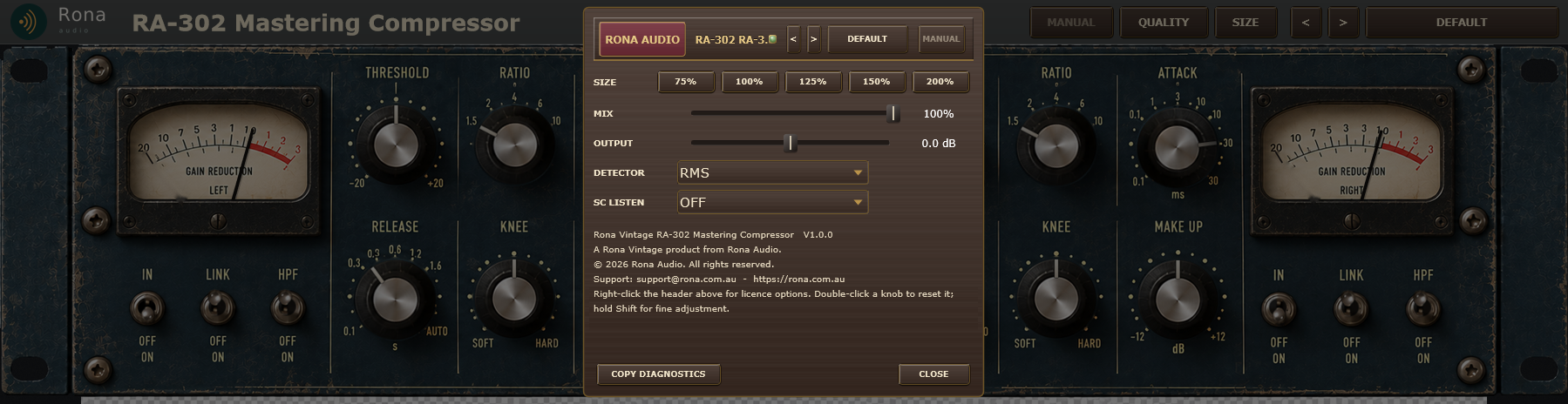
  • MIX — dry / wet blend of the compressed signal (parallel compression), before OUTPUT
  • OUTPUT — output trim after MIX, -12 to +12 dB
  • DETECTOR — RMS (5 ms window, the mastering default, reads the loudness) or PEAK (reads every transient)
  • SC LISTEN — ON monitors what the detectors hear (after the sidechain switch and HPF) instead of the output – to set the HPF; never leave it on

13 factory presets in 4 categories. Formats: VST3 and AAX (Windows 10/11 64-bit); VST3, AU and AAX (macOS). Stereo output. Installed, activated and updated with RONA License Manager.
System requirements

Windows Windows 10 or later (64-bit)
macOS macOS 10.13 or later — Intel & Apple Silicon (Universal 2)
CPU Windows 10/11 64-bit; macOS
RAM 4 GB
Disk 50 MB
Formats Windows: VST3 · AAX · macOS: VST3 · AAX · AU
Installation RONA License Manager (install, activate, update)
DAWs verified Any VST3 / AU-capable DAW · Pro Tools (AAX) · Logic Pro (AU)

What’s included

Windows: VST3 / AAX · macOS: VST3 / AAX / AU · PDF manual · one license, 3 computers · installed and activated with RONA License Manager · free updates within the major version

Version

Version 1.0.0 5 October 2026

First release. 19-inch two-channel mastering compressor on the Rona Vintage front panel: THRESHOLD, RATIO, ATTACK, RELEASE (with AUTO), KNEE and MAKE UP per channel, IN and sidechain HPF levers per channel, STEREO LINK, internal or external SIDECHAIN, HPF FREQ, gain-reduction VU meters, MIX, OUTPUT, RMS / PEAK detector and SC LISTEN in the settings panel, MIDI Learn on every control. Windows VST3 + AAX, macOS VST3 + AU + AAX. Installed, activated and updated with RONA License Manager.
Questions

How do I install and activate Rona Vintage RA-302 Mastering Compressor?

Download RONA License Manager from rona.com.au/license-manager, log in with your rona.com.au account and click Install next to the product. It activates this computer, downloads the right installer for your system and installs every format. There is no serial number to enter and no activation button inside the plug-in.

How many computers can I use it on?

Each serial number can be active on up to 3 computers at the same time. On a Mac the VST3, AU and AAX formats share one activation. You can see your computers and free a slot at any time in RONA License Manager (Activations) or on rona.com.au under My Account → My Products.

Which formats are included?

Windows: VST3 and AAX. macOS: VST3, AU (Audio Unit) and AAX, Universal 2 for Intel and Apple Silicon. RONA License Manager installs all formats of a product together and they share one activation.

Do I need an internet connection?

An internet connection is needed for RONA License Manager to log in, activate, download and update your products. You do not need to be online while you work in your DAW.

Where are the controls that are not on the front panel?

A right-click on the top bar or the panel opens the settings panel. It holds everything that is not a control on the front panel: Presets: choose a factory preset, step through presets, save, rename and delete your own. MANUAL: opens this manual. Right-click the header strip for the licence options: licence status, check now, deactivate this computer, show the machine id, load an offline licence, open RONA License Manager. SIZE: window size.

Related products