Hear it
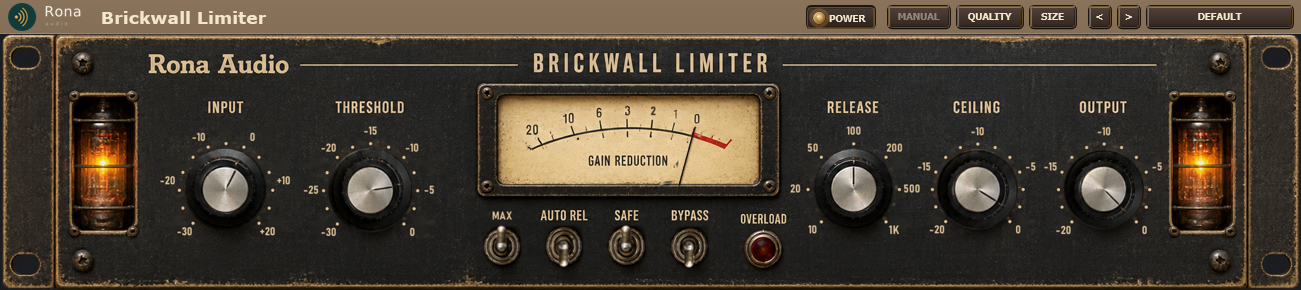
Rona Vintage Brickwall Limiter is a true-peak brickwall limiter and maximiser in the Rona Vintage line from Rona Audio, with the unit’s own front panel as the interface. Every knob and switch you see works; the circuit behind them is modelled stage by stage so the controls interact the way the hardware’s do.
- INPUT — trim before the tube stage and the maximiser drive, -30 to +20 dB in 0.5 dB steps
- THRESHOLD — where maximising gain begins: the drive into the limiter is CEILING minus THRESHOLD (never below 0 dB); MAX overrides the knob with the lowest position, -30 dBFS
- RELEASE — manual gain recovery time constant of the lookahead limiter (kept, and stored, while AUTO REL is on)
- CEILING — the final true-peak ceiling: the limiter and the guard hold the reconstructed (4x oversampled) peak at or under it
- OUTPUT — final attenuation after the ceiling stage, -20 to 0 dB in 0.1 dB steps; no boost, so it cannot defeat the ceiling
- MAX — ON: the limiter is driven to its maximum level – the drive is CEILING minus -30 dBFS whatever the THRESHOLD knob says (the knob’s value is kept); OFF: CEILING minus THRESHOLD
- AUTO REL — ON: signal-dependent recovery – 20 ms for brief peaks, lengthening with the depth of sustained reduction up to 1 s; the RELEASE knob’s value stays stored
- SAFE — ON: 10 ms lookahead; OFF: 1 ms lookahead. The reported latency is the same either way (the 10 ms is always reserved) and the true-peak guard stays
- BYPASS — ON: the latency-matched dry signal replaces the output (no trim, colour or limiting) over a 20 ms crossfade; the hardware stays lit
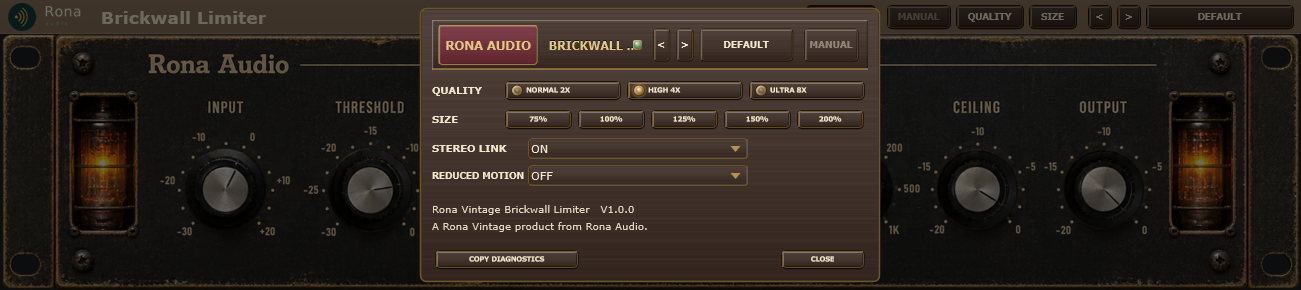
- STEREO LINK — settings panel (the panel’s LINK switch became MAX on the owner’s instruction): ON applies the greater required attenuation to both channels; OFF = independent channel gain reduction
- REDUCED MOTION — GUI only (settings panel): the power animation uses plain fades, no needle settling bounce or glow modulation. No effect on the audio
14 factory presets in 5 categories. Formats: VST3 and AAX (Windows 10/11 64-bit); VST3, AU and AAX (macOS). Stereo output. Installed, activated and updated with RONA License Manager.
System requirements
What’s included
Windows: VST3 / AAX · macOS: VST3 / AAX / AU · PDF manual · one license, 3 computers · installed and activated with RONA License Manager · free updates within the major version
Version
Version 1.0.0 8 October 2026
First release. 19-inch true-peak brickwall limiter and maximiser on the Rona Vintage front panel: INPUT, THRESHOLD, RELEASE, CEILING and OUTPUT (all stepped), MAX, AUTO REL, SAFE and BYPASS levers, an overload lamp, a gain-reduction meter, two glowing tubes and a POWER switch with warm-up and cool-down, MIDI Learn on every control. Windows VST3 + AAX, macOS VST3 + AU + AAX. Installed, activated and updated with RONA License Manager.
Questions
How do I install and activate Rona Vintage Brickwall Limiter?
Download RONA License Manager from rona.com.au/license-manager, log in with your rona.com.au account and click Install next to the product. It activates this computer, downloads the right installer for your system and installs every format. There is no serial number to enter and no activation button inside the plug-in.
How many computers can I use it on?
Each serial number can be active on up to 3 computers at the same time. On a Mac the VST3, AU and AAX formats share one activation. You can see your computers and free a slot at any time in RONA License Manager (Activations) or on rona.com.au under My Account → My Products.
Which formats are included?
Windows: VST3 and AAX. macOS: VST3, AU (Audio Unit) and AAX, Universal 2 for Intel and Apple Silicon. RONA License Manager installs all formats of a product together and they share one activation.
Do I need an internet connection?
An internet connection is needed for RONA License Manager to log in, activate, download and update your products. You do not need to be online while you work in your DAW.
Where are the controls that are not on the front panel?
A right-click on the top bar or the panel opens the settings panel. It holds everything that is not a control on the front panel: Presets: choose a factory preset, step through presets, save, rename and delete your own. MANUAL: opens this manual. Right-click the header strip for the licence options: licence status, check now, deactivate this computer, show the machine id, load an offline licence, open RONA License Manager. QUALITY: the oversampling used by the clipping stages – Normal (2x), High (4x, default) or Ultra (8x). Higher settings reduce aliasing at the cost of CPU; the latency reported to your DAW changes with it and is compensated automatically.